
IT Tips & Tricks
When “Prove You’re Human” Means “Run This Malware”
Published 25 November 2026
Imagine a developer on your team receives a GitHub notification warning of a security vulnerability in a company code repository. They follow the link to investigate. Before they can proceed, a verification screen asks them to prove they’re human and supplies a few extra steps. Following those instructions launches PowerShell and installs the malware.
They were simply trying to investigate a security problem. Now your team actually has one.
That’s what makes a fake CAPTCHA so effective on your organization’s busy employees and hurried executives. It catches someone who’s already thinking, “What do I have to do to get this stupid thing to load?”
Then it tells them.
They were simply trying to investigate a security problem. Now your team actually has one.
For IT managers, that creates a training problem. Your employees may know better than to open a suspicious email attachment. But would they question a verification screen on a website they’ve used before?
Cybersecurity experts and agencies, including the Federal Trade Commission (FTC) and the Identity Theft Resource Center (ITRC), have published warnings about these scams, so prepping for the possibility can’t hurt.
How a Fake CAPTCHA Becomes a ClickFix Attack
The employee doesn’t have to understand what they’re pasting. They just have to trust the instructions enough to finish the task.
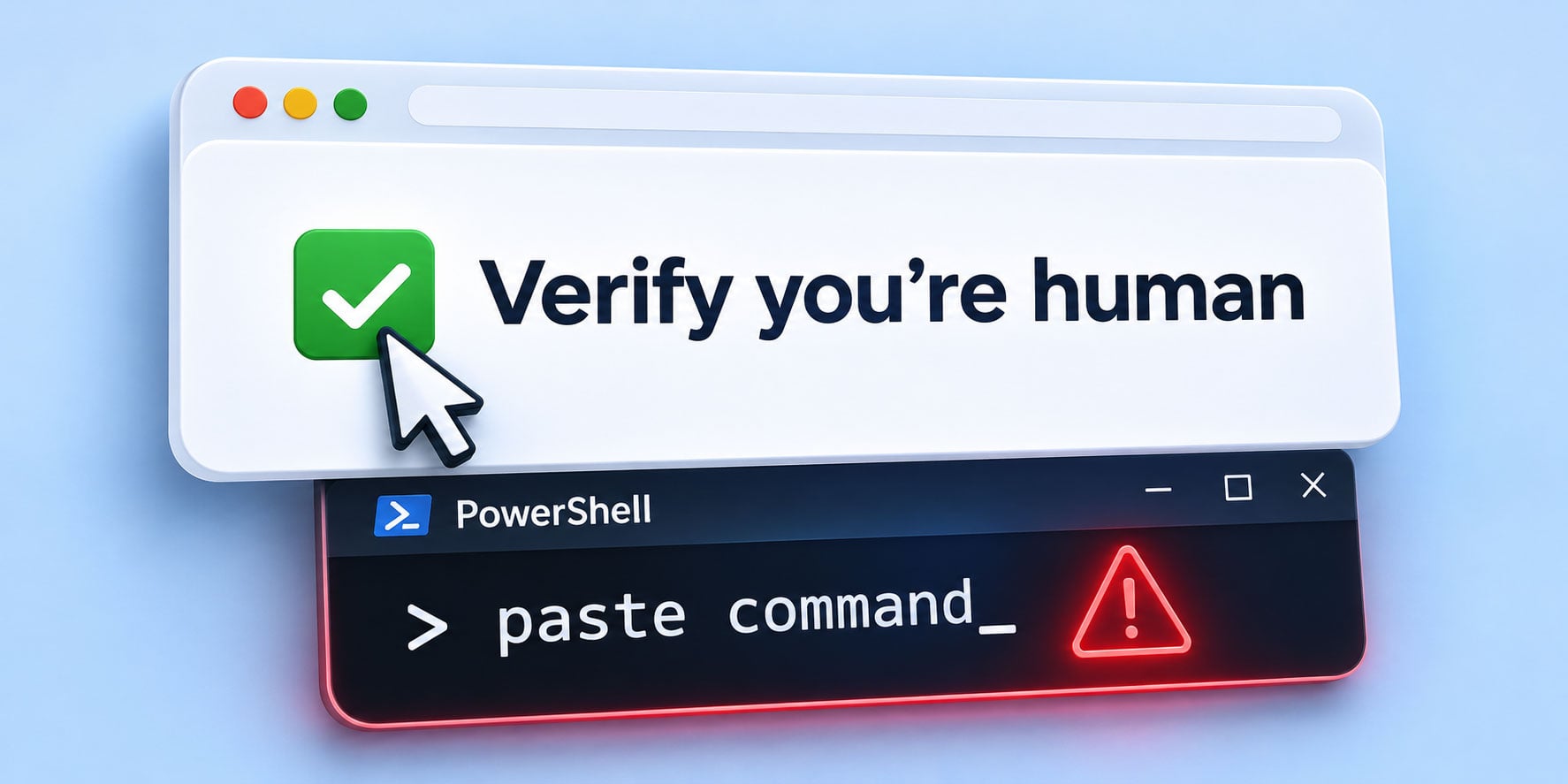
The developer expects to review a reported vulnerability. Instead, they’re looking at a verification screen. They click the checkbox, but apparently that’s insufficient evidence of their humanity. Another step is required. The page tells the developer to open Windows Run, paste a command and press Enter. It presents these steps as part of the verification process.
This is the setup for a ClickFix attack. The attacker presents a problem, supplies instructions for solving it and persuades the user (a company employee or contractor) to run a malicious command. Microsoft has documented ClickFix campaigns using Windows Run, Terminal and PowerShell.
The user doesn’t have to understand what they’re pasting. They just have to trust the instructions enough to finish the task.
Your support team will recognize the routine being imitated. Legitimate troubleshooting often involves asking an employee to open a window, enter something and see whether it works. ClickFix relies on that routine, but gives it a malicious purpose.
What Happened in the TerminalFix Campaign?
In a separate campaign described in a 28 August 2026 report, Microsoft documented attackers using compromised websites to display fake Cloudflare verification screens.
When visitors interacted with the prompt, a malicious command was silently copied to their clipboard. The instructions then directed them to paste it into Windows Terminal or PowerShell.
Once run, the command displayed reassuring verification messages while downloading malicious components. The malware then gathered information about the organization’s Windows network and installed a reverse tunnel. This connection allowed the attackers to use the infected computer as a route to other internal systems.
Microsoft didn’t observe subsequent data theft or ransomware deployment in the analyzed chain. Those were possible consequences of the access, rather than confirmed outcomes.

Familiar website, but unfamiliar instructions? Stop!
Even with that distinction, it’s an ugly result for someone who thought they were simply completing a website’s verification check.
“But We Use That Website All the Time!”
That’s a reasonable objection. It’s also part of the problem.
In the GitHub campaign, the notification came through GitHub’s own system, but the warning linked to an imitation site. The familiar source helped make the malicious instructions look credible.
The attacker makes cooperation feel like progress.
Not all ClickFix attacks require an imitation site. The Center for Internet Security describes attackers injecting malicious content into legitimate websites.
It’s the employee’s familiarity with a site or service that creates a sense of trust, so a warning from IT to “avoid dodgy websites” doesn’t protect the organization.
Consider the developer’s position. Investigating a reported vulnerability is a reasonable response. The page resembles a service they use for work and the verification screen appears to explain what they need to do to proceed.
By this point, the employee is most likely focused on completing the “required” steps correctly rather than questioning who supplied them. That’s the social engineering at work. The attacker makes cooperation feel like progress.
Your in-house IT training needs to give employees a reason to stop at precisely that moment.
Teach One Clear Stopping Point
Here’s a rule people can remember:
If a CAPTCHA asks you to open something and paste a command, stop and contact IT.
Legitimate CAPTCHAs don’t require users to copy and paste commands. Employees shouldn’t have to determine whether a command supplied by a verification screen looks dangerous. The request itself is their signal to stop.
Show employees a harmless example instead. Start with the familiar verification screen, then reveal the instruction to leave the browser and run a command. Explain that this request is their cue to exit. Give them an easy way to report it too.
And if your own support staff sometimes ask employees to run commands, explain how those requests can be verified through the service desk. “Do what IT says” only helps when people can establish that they’re actually dealing with IT.
The website offering an immediate “solution” may be more persuasive than your last security presentation.
Check What Your Devices Allow
A social engineering attack shouldn’t have to be caught entirely by the employee being targeted.
Review which employees need command interfaces for their work. Microsoft’s ClickFix guidance suggests restricting Windows Run where it isn’t needed. The TerminalFix campaign shows why that review should also consider Terminal and PowerShell.
For MSPs, this calls for a client-specific discussion. A receptionist and a migration engineer probably need different access. Test restrictions against their actual work before deploying them.
Application control deserves attention as well. Microsoft documents how App Control for Business can limit what PowerShell scripts are allowed to do. The behavior varies by script host and policy, so check what your configuration actually enforces.
Be careful about assuming PowerShell execution policy solves this. Microsoft states that it isn’t a security boundary. Restricting script files doesn’t necessarily prevent someone from entering commands interactively.
Have your security team safely validate whether the controls on a typical employee device interrupt this kind of activity.
Make “Oops, I Already Ran It” Easy to Report
Your reporting process also needs to work after someone makes a mistake.
Tell employees to contact the service desk immediately if they’ve followed instructions they later suspect were malicious. Ask what happened and roughly when. Your security team can then direct containment and investigation.
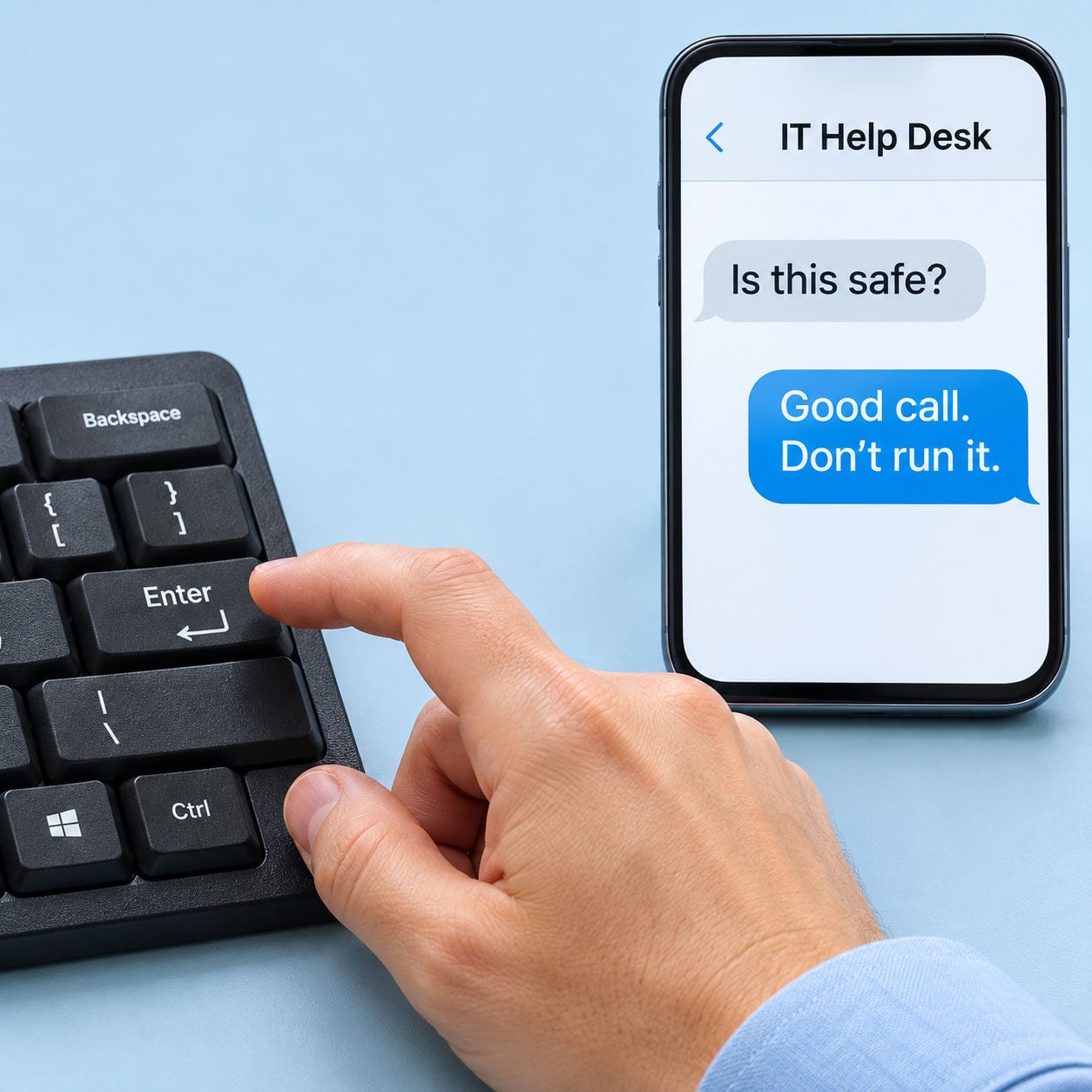
The download can wait. Check with IT before hitting Enter.
Review whether PowerShell logging gives investigators useful evidence. Microsoft mentions script block logging as a way to record processed commands and scripts, including those entered interactively.
For MSPs, agree with clients on who receives reports and who can isolate an affected device, including outside business hours.
Above all, make it completely acceptable for an employee to pause a task and verify suspicious instructions.
I’d emphasize that in training: “You won’t get in trouble for stopping to check with IT.”
Someone under pressure to finish a task needs to know that pausing is the preferred decision. Otherwise, the website offering an immediate “solution” may be more persuasive than your last security presentation.
The bottom line is that investigating a security warning shouldn’t create the next security incident.
By Ed Clark
References:
- FTC: Federal Trade Commission
- ITRC: Identity Theft Resource Center
- Social engineering: www.microsoft.com
- Reverse tunnel: www.microsoft.com
- Social engineering: www.cisecurity.org
- ClickFix: www.microsoft.com
- Script enforcement: learn.microsoft.com
- Client management: learn.microsoft.com
- PowerShell: learn.microsoft.com

LinkTek COO
Ed Clark

Feel free to share this article on your social media:
Recent Comments
- No recent comments available.


 ChatGPT,
 Gemini,
 Claude and
 Copilot

Leave a Comment