
When Phishing Looks Like Your Own IT Department
How email bombing, Microsoft Teams and legitimate remote-support tools can turn one user’s mistake into an enterprise incident.
Published 18 September 2026
At 10:17 on an otherwise ordinary Tuesday, one of your users calls the help desk with a slightly ominous question.
“Did someone from IT just work on my computer?”
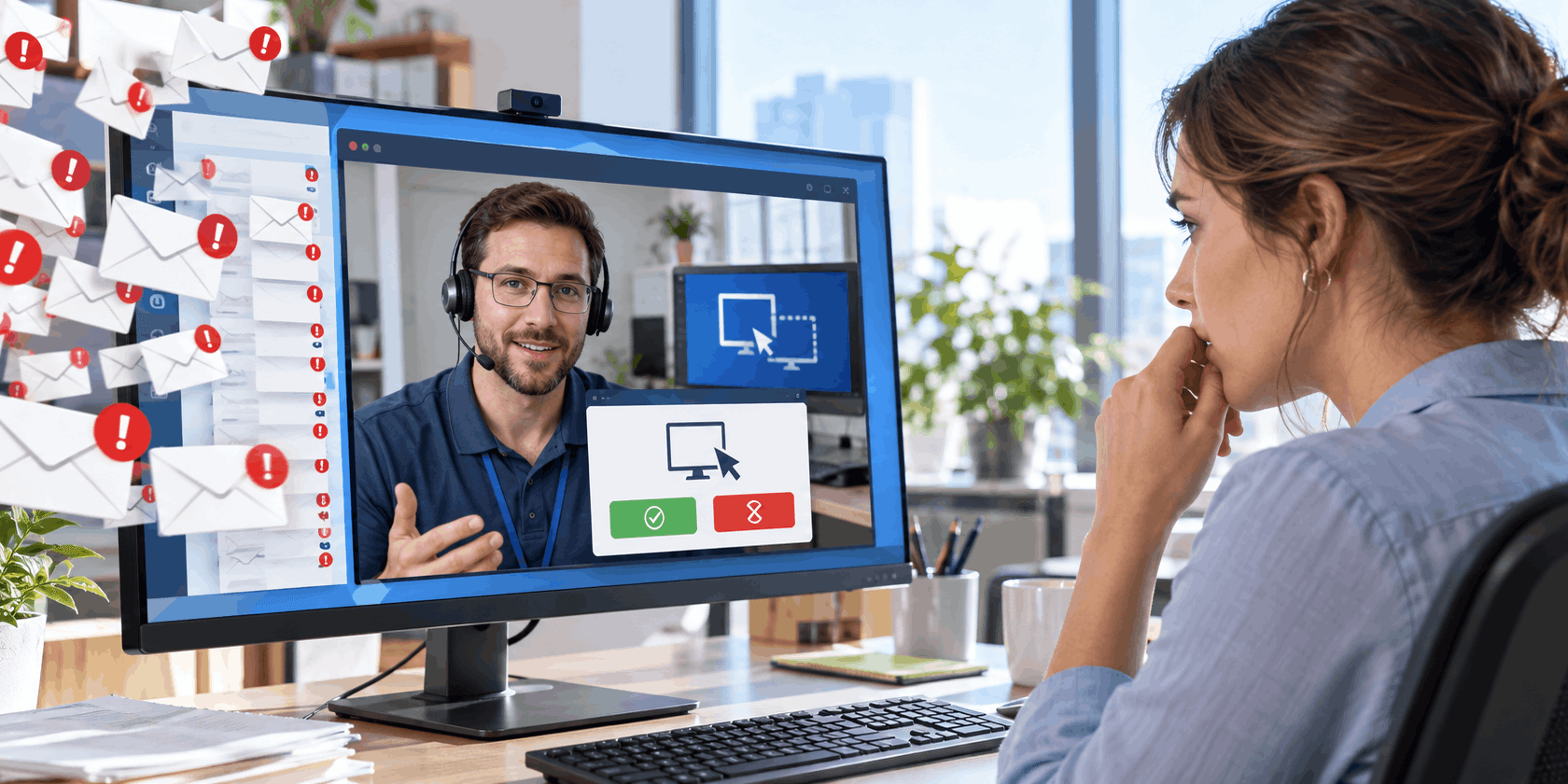
Nobody did. There’s no ticket, no scheduled maintenance or technician assigned to the user. There was, however, a Microsoft Teams™ call, a Quick Assist session and several minutes during which someone outside your organization controlled the device.
The user explains that his inbox had suddenly filled with hundreds of unwanted messages. Minutes later, a friendly caller appeared through Teams, claimed to be from IT and offered to fix the problem. The caller asked him to share his screen, approve a request for control, and open Quick Assist.
His timing was impeccable.
That’s because the “helpful” technician and the person who created the problem may be working together. They may even be the same person. (Expletive deleted.)
In early September, Microsoft Threat Intelligence disclosed an active campaign in which attackers impersonate IT or helpdesk personnel through Teams, persuade employees to begin remote-support sessions and turn that user-authorized access into a foothold inside the organization.
The attack doesn’t begin with a flaw in Microsoft Teams. It begins with a flaw in the way we decide whom to trust.
The attack doesn’t begin with a flaw in Microsoft Teams. It begins with a flaw in the way we decide whom to trust.
First, Create the Problem
The most effective deceivers don’t simply offer help. They make sure you need it.
One version of this playbook begins with email bombing, also called subscription bombing or inbox flooding. Automated scripts submit one employee’s address to large numbers of legitimate registration and subscription forms, causing hundreds or thousands of confirmation messages to arrive within minutes.
This isn’t an exotic scenario dreamed up for a security-awareness exercise. Sophos documented more than 15 incidents involving email bombing and Teams-based IT impersonation within three months. In some cases, attackers pushed as many as 3,000 messages into a targeted employee’s inbox in less than an hour.
The flood can be surprisingly difficult to filter because many of its component messages aren’t individually malicious. They’re genuine confirmations generated by reputable services. The attack becomes visible in the abnormal volume, velocity and diversity of otherwise ordinary mail.
When “IT support” calls a few minutes later, the employee may feel relieved that someone noticed the problem so quickly. That’s exactly the response the attackers are banking on.

The person creating the crisis may be the same person offering to make it disappear.
During an active inbox flood, the caller appears to possess information that only the real support team would have. The problem itself seems to authenticate the caller, and the user may grant access before your team even knows anything is happening.
Email bombing isn’t always part of the sequence. Microsoft has also observed attackers using pretexts such as security updates, spam-filter repairs, account verification and tasks supposedly required to prevent account deactivation. Whatever the story, the goal is to make immediate compliance feel safer than delay.
Phishing Has Left the Inbox
Most awareness training still teaches users to inspect email: check the sender, distrust unexpected links and look for urgency. But this new type of attack shifts the conversation into a collaboration platform where those familiar checks may not feel applicable.
For your users, Teams conversations are in a different category from an unsolicited email. It’s where employees speak with colleagues, attend meetings and sometimes contact support. A call or chat arriving inside that environment can inherit some of the platform’s perceived legitimacy even when the caller has none.
When Teams external access is enabled, people from other Microsoft 365™ organizations may be able to contact your users. Teams displays indicators for external, guest and unverified participants, along with Accept or Block prompts at first contact, but those controls still depend on the employee noticing the indicator, understanding it and refusing the interaction.
Voice adds another advantage. The attacker can answer questions, adjust the pretext in real time and keep the user moving through the remote-access process. Verbal instructions also leave less evidence in the Teams chat record.
It’s phishing, but it doesn’t look like the phishing many employees are trained to spot.
It’s phishing, but it doesn’t look like the phishing many employees are trained to spot.
When a Support Workflow Becomes Initial Access
You already know that Teams screen control and Quick Assist are legitimate support mechanisms. That’s the problem. The attacker is turning a familiar administrative workflow into the initial-access mechanism and relying on the user to authorize it.
Once the session begins, the attacker gains interactive, credential-backed access in the user’s security context. Instead of persuading the employee to open an obviously suspicious attachment, the operator can initiate the next stage while the user watches what appears to be routine troubleshooting.
Microsoft has observed attackers using PowerShell during such a session to download and silently install a malicious Microsoft Installer (MSI) package from cloud storage. The packages carried harmless-sounding names such as “Hotfix” and “devfix” and were installed through msiexec with the /qn switch, suppressing the installer interface.
The packages carried harmless-sounding names such as “Hotfix” and “devfix” and were installed through msiexec with the /qn switch, suppressing the installer interface.
The installer staged an encrypted JavaScript implant and, where necessary, downloaded a legitimate portable Node.js runtime to execute it. Using a signed, trusted runtime helped the activity blend into normal enterprise operations while establishing persistent command execution from the user’s LocalAppData directory.
Microsoft also observed persistence through a current-user Run key or Startup-folder shortcut disguised as an update process.
One Employee’s Computer Is Only the Beginning
Once the foothold was established, the operators rapidly moved beyond the affected workstation.
Operator-issued commands collected system details, domain information and installed security products. The implant also captured screenshots and queried Active Directory through native tools and Active Directory Service Interfaces, or ADSI.
The operators then used Windows Remote Management, or WinRM, over TCP port 5985 to reach other domain-joined systems. The observed targets included file servers, database servers, application servers, domain controllers and certificate authorities.
Microsoft says this reconnaissance and lateral movement can precede data theft, extortion or ransomware. By the time your team receives the report, the scope of the incident may no longer be limited to the original workstation.

One approved remote session can open a path towards far more valuable systems.
The employee who approved the Teams session isn’t necessarily handing over the whole network, but they are unknowingly opening the first door.
“Don’t Fall for It” Isn’t a Support Protocol
It’s tempting to treat this as another awareness problem: remind users not to trust unsolicited calls, add a slide to the annual security presentation and hope they remember it six months later while an inbox is exploding.
Employees need a reliable way to distinguish legitimate support from impersonation.
That isn’t enough.
Employees need a reliable way to distinguish legitimate support from impersonation. If your help desk contacts people unexpectedly, asks for immediate cooperation and begins remote sessions without an established verification process, attackers can imitate that behavior. The organization has unknowingly supplied the script.
Your support protocol should make legitimate assistance easy to authenticate and unauthorized access difficult to initiate. At a minimum:
- Every support interaction should be tied to a valid ticket number.
- Employees should verify unsolicited contact through a published internal number, portal or directory.
- Callbacks should use independently obtained contact information, never a number supplied by the caller.
- Remote control should begin only through an approved tool and after confirmation through an authorized channel.
- Requests to run commands, install unapproved software or bypass security warnings should terminate the session.
- Users should understand Teams external-participant indicators and any help desk authentication phrase your organization adopts.
A legitimate technician shouldn’t have to invent a way to prove legitimacy during every call. The workflow should establish that identity before an interactive session begins.
MSPs face an additional challenge because their technicians genuinely are external. Clients should know which channels, domains and remote-support tools the MSP uses, as well as what its technicians will never ask them to do.
What Your Team Can Control
A verification protocol limits the social-engineering opportunity. Configuration and detection controls can narrow it further.
Review who can initiate external Teams contact with your users. Where business requirements permit, restrict access to trusted domains and prevent unmanaged Teams accounts from starting conversations. More permissive access can be reserved for users who genuinely need it.
Inventory the remote-support applications on managed endpoints. Disable Quick Assist where it isn’t required, restrict approved remote monitoring and management (RMM) tools and require device-based or identity-based checks before granting remote control. WinRM should be limited to authorized management systems rather than broadly reachable from user workstations.
Security teams can also hunt for the sequence, such as:
- An external Teams conversation followed by Quick Assist or screen control.
- PowerShell downloading an MSI into a user-writable directory.
- Silent msiexec execution.
- Node.js running from LocalAppData.
- Repeated screen captures.
- WinRM connections initiated from an unexpected process.
If you discover this sequence, changing one employee’s password may be insufficient. Investigate lateral movement, contain the endpoint and rotate credentials accessible during the session, including privileged credentials where exposure can’t be ruled out.
Make Real IT Easier to Verify
Organizations have spent years teaching employees to be helpful, responsive and cooperative with IT. Attackers are now using those instincts against them.
The answer isn’t to make every support call feel like a border interrogation. It’s to give users a familiar verification routine that real technicians expect and impostors can’t easily satisfy.
An employee who says, “I’ll call the help desk back using the number in our directory,” isn’t being difficult. That employee may be protecting the entire organization.

Not on your watch. A callback to a secure number can stop an apparent support request from becoming an enterprise-wide nightmare.
Your users shouldn’t have to judge a support technician by timing, tone of voice or how convincingly he says, “I’m Dave from IT.” Give them a process that settles the question before remote access begins.
If attackers are going to impersonate your IT department, make sure the real one is easier for users to verify.
By Ed Clark

LinkTek COO
Ed Clark

Feel free to share this article on your social media:
Recent Comments
- No recent comments available.


 ChatGPT,
 Gemini,
 Claude and
 Copilot
Leave a Comment