

IT Tips & Tricks
Should You Fix Broken Links Before or After a Data Migration?
Published 5 November 2026
Your migration plan is already crowded. There are permissions to map, files to clean up, users to notify and a cutover window that shrinks every time someone looks at it.
Then somebody asks about the links inside all those files.
“Can we just move everything first and fix whatever breaks afterwards?”
You can. Sometimes you have no choice. But protecting working links before a data migration and repairing broken ones afterwards are two different jobs. One preserves information you still have. The other may require you to reconstruct that information after it’s disappeared.
It exists. It opens. But none of that means the file’s fully usable.
If the migration hasn’t happened yet, the best answer is clear: Protect working links before files move, then update and test them afterwards.
Why? And how is that even possible?
Let’s approach those questions one at a time.
A Working Link Gives You Valuable Information
Before migration, a working link identifies both sides of a relationship. It tells you which parent file contains the link and which child file, document, image or drawing that parent expects to find.
A path map might tell you where a file went. It doesn’t rewrite every link that still points to the old location.
For example, a workbook might retrieve figures from
\OldServerFinanceForecastsFY2026-Rates.xlsx.
As long as the link works, you know exactly which file supplies the data.
After a SharePoint migration, or any other platform move, that file might have a new name. It could be stored inside a different document library, assigned to another department or several folders away from where anyone expected it to land.
The file may still exist, but the original link no longer reaches it. Now somebody has to search several locations, examine migration logs and ask Finance whether “FY2026-Rates-FINAL.xlsx” and “FY2026-Rates-FINAL-USE-THIS.xlsx” are the same file.
You aren’t fixing a working link before migration. You’re preserving the relationship it represents while you can still see both sides.

Before the move, a working link points to exactly the data your spreadsheet needs.
Data Migration Testing Must Look Inside the Files
Effective data migration testing checks more than whether files arrived and could be opened. It must also account for the relationships hidden inside them.
An Excel workbook may open while failing to retrieve figures from another workbook. A PowerPoint presentation may display last month’s chart even though its connection to the source data is broken. A CAD drawing may open without the reference files needed to show the complete design.
From the outside, the file appears to have migrated successfully. It exists. It opens. Nobody has reported smoke coming from the server room. But none of that means the file’s fully usable.
A pre-migration scan establishes which links work, which are already broken and which files depend on other files. Post-migration testing tells you whether those relationships survived.
Without that baseline, the migration team may discover 6,000 broken links after cutover and have no reliable way to tell how many were caused by the move and how many already existed.
Some Links May Already Be Broken
If a workbook currently points to a server that was retired three years ago, there’s no working relationship to preserve. The old path may provide clues, but it can’t confirm whether the missing file was renamed, moved, deleted or replaced. A pre-migration scan identifies:
LinkFixer Advanced is the only solution available that can pre-protect file links this way.
- Links that work now but may break during the migration.
- Links that are already broken before the project begins.
Existing broken links may point to files in another location, content that has been renamed or files that no longer exist. Each possibility calls for a different decision.
Finding these problems before cutover gives you time to decide what deserves attention. It also prevents the migration from being blamed for years of accumulated link damage. Migrations already get blamed for enough, right?
Fortunately, protecting the working relationships before they disappear is possible. First, though, it helps to understand what happens when everything is left until afterwards.
Repairing Links Afterwards Requires More Detective Work
Once the migration is over, the question changes. Beforehand, you could ask, “Where does this link point?” and easily find the answer. Afterwards, you may be left asking, “Where on earth was it supposed to point?” and this time the answer may be nowhere in sight.
Your migration team may have source-to-destination mappings and reliable logs. That information is useful, but it doesn’t update the embedded links inside Excel workbooks, Word documents, CAD drawings and other files.
Post-migration repair can involve:
- Scanning destination files to identify broken links.
- Reconstructing source-to-destination mappings.
- Distinguishing duplicate filenames from the correct targets.
- Creating and testing link-modification rules.
- Investigating exceptions that don’t fit the expected patterns.
In other words, it’s a lot of work and you’re starting with fewer clues. A path map might tell you where a file went. It doesn’t rewrite every link that still points to the old location.
Why Search-and-Replace Isn’t Enough
A replace-type tool can change a server name or folder path when the required substitution is already known.
That sounds promising until the migration includes renamed files, reorganized departments, new document libraries, duplicate filenames and exceptions that don’t follow the main pattern.
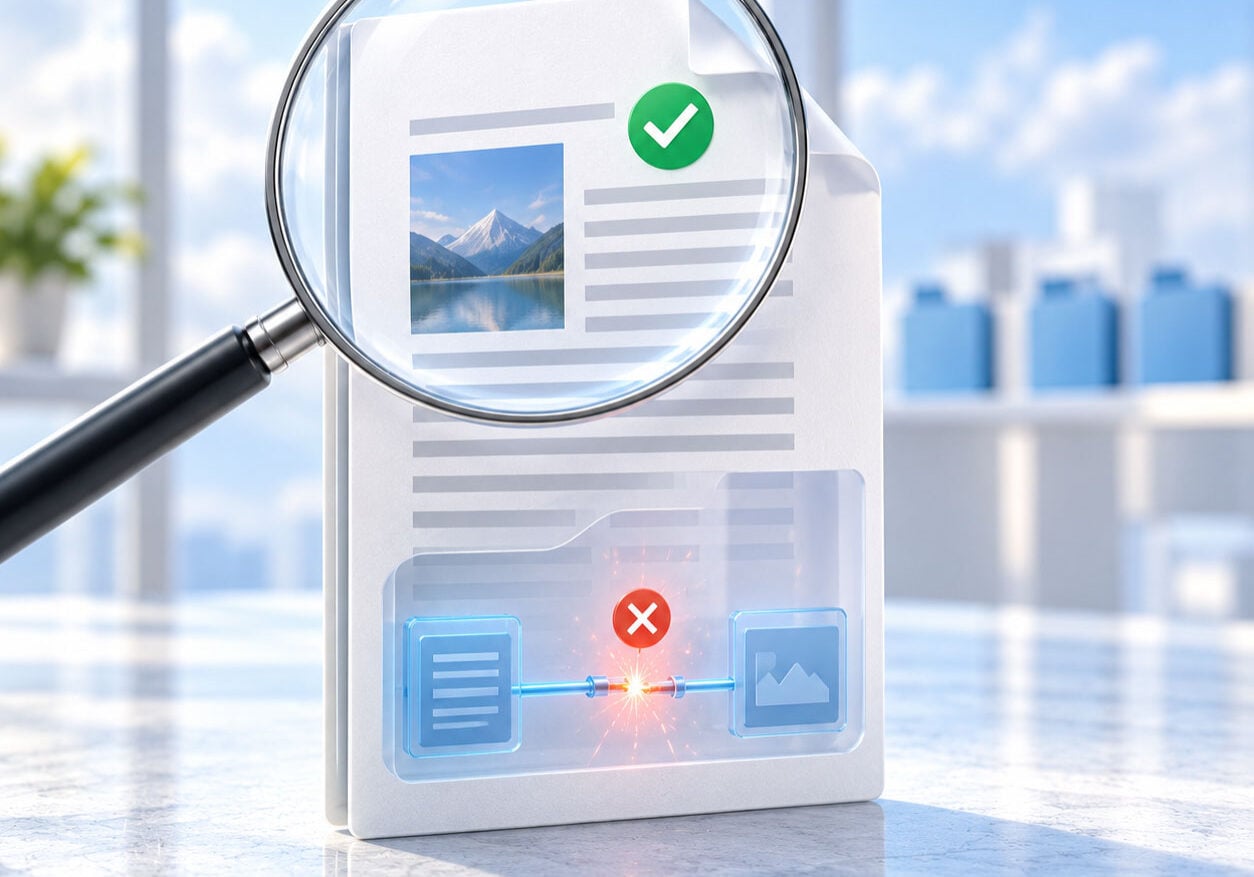
After migration, finding the right file is only half the mystery. The broken links inside it still need to be repaired.
A basic search-and-replace tool can’t decide which similarly named file is the correct target. It can’t reconstruct a relationship that was already broken. It also won’t necessarily tell you whether the replacement points to a file that exists.
Someone must first determine what changed, build the mappings, create the replacement rules and check the results. At enterprise scale, that can mean working through thousands or millions of links.
Once the mapping rules are set (and even if they seemed to go fairly well), the search-and-replace method cannot handle any changes that occur after the mapping was done.
Search and replace is the difficult route. There’s an alternative that preserves working relationships before they disappear and automates the repair after the files move, without you having to know the location of every file that was moved or renamed.
How To Have Links Protected Before a Data Migration or File-system Reorganization
The advent of LinkFixer Advanced™ made pre-migration link protection possible.
Its Inoculate process records the relationships between your linked files before they move. After the migration, the Cure process finds those files in their new locations and fully automatically updates the protected links. No mapping required.
No mapping required.
LinkFixer Advanced is the only solution available that can pre-protect file links this way.
Pre-protection doesn’t depend on the old and new paths remaining recognizable. And we both know that real migrations aren’t usually considerate enough to leave the structure unchanged.
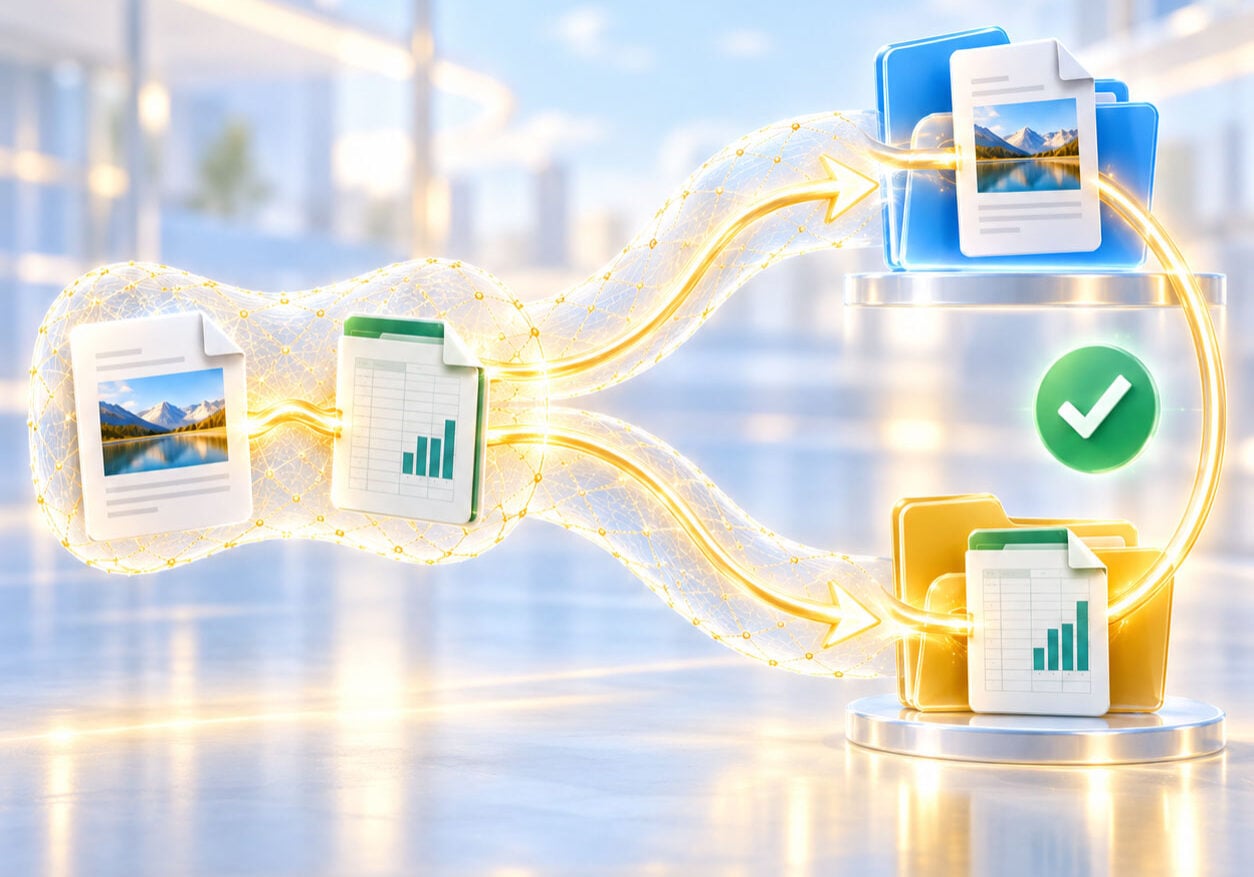
When linked files take different paths, pre-protection keeps their relationship intact.
For example, files may be split among several SharePoint sites. Folders may become libraries. Business units may reorganize content and files may be renamed to meet destination requirements. Despite all these changes, the Inoculate process preserves the relationships for you automatically. Once the files arrive at their destination, the Cure process handles the updates for you.
What If the Migration Has Already Happened?
If the files have already moved, LinkFixer Advanced still has you covered.
Its Modify Links process can repair links across batches of files. You can select particular file types and links, modify specific parts of a link path and preview the proposed changes before processing. Modify Links also supports regular expressions for more complex link patterns.
Once processing is complete, detailed reports show which files and links were processed, skipped or encountered exceptions.
That gives you far more control and visibility than a basic search-and-replace tool while allowing large groups of links to be repaired at once.
So, even when pre-protection is no longer an option, rapid repair still is.
So, Should You Fix Links Before or After?
If the migration hasn’t happened yet, always choose to protect working links before files move. That’s when you have the clearest information about which files belong together. It’s also the right time to identify existing broken links and establish a reliable baseline. After cutover, Cure can update the protected links in their new environment.
If the files have already moved, Modify Links can repair links that have broken, restore access to linked data and help the help desk go pleasingly quiet.
Before cutover, LinkFixer Advanced preserves working file links. After cutover, it repairs links that have already broken. Whichever side of the migration you’re on, the sooner you deal with those links, the sooner peace will reign supreme.
By Ed Clark

LinkTek COO
Ed Clark

Feel free to share this article on your social media:
Recent Comments
- No recent comments available.


 ChatGPT,
 Gemini,
 Claude and
 Copilot

Leave a Comment