
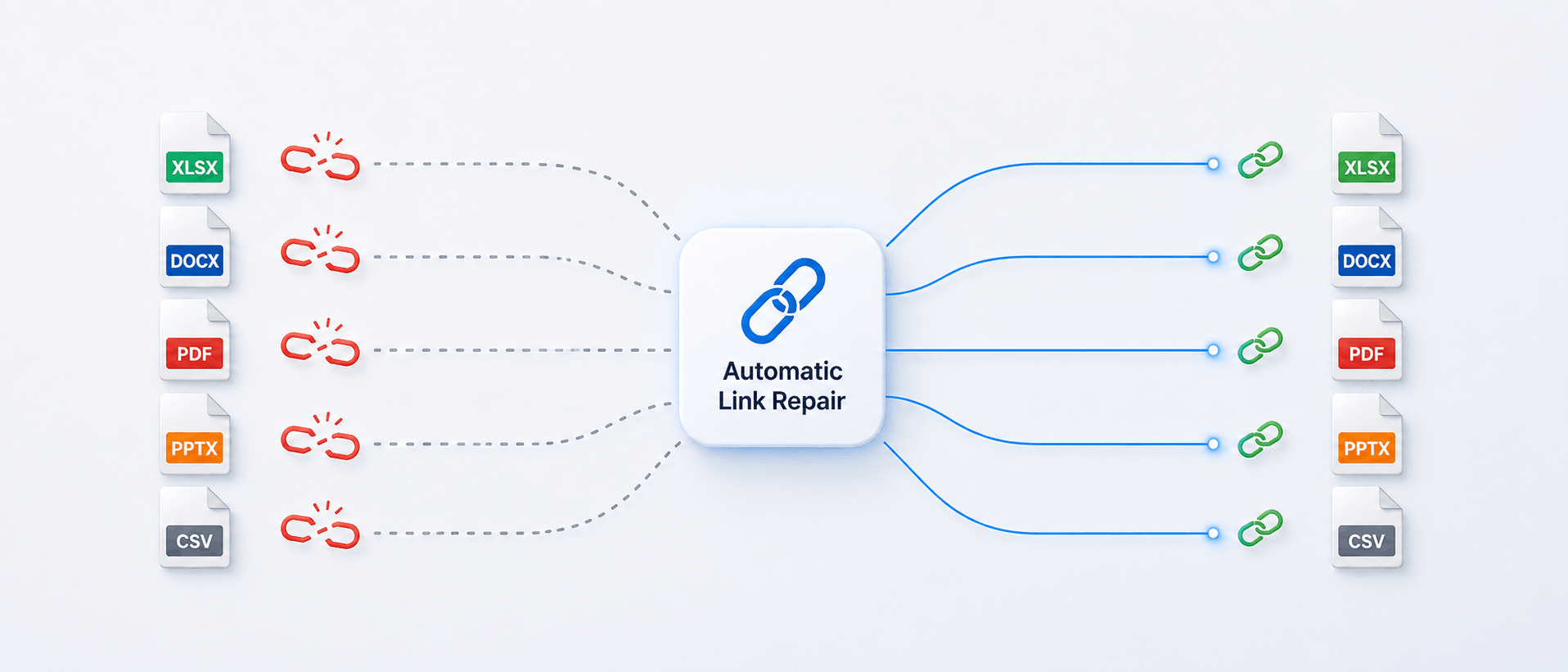
The Definitive Guide to Link Protection and Automated Link Repair
Published 18 August 2026
Enterprise migrations aren’t just about moving files from one place to another. They succeed or fail based on whether people can keep using the data, systems and workflows they depend on after cutover.
Here’s one of the biggest causes of such failures: The folders and files move successfully, but the links inside them break.
A spreadsheet that once pulled data from another workbook suddenly shows errors. A project folder arrives in SharePoint, but the links inside key files still point to an old server path that no longer exists. A CAD drawing opens without its external references. Now, multiply this by the number of such files you might have, and you start to get a feel for the real scope of the failure.
That’s the real migration risk: not just moving the data, but keeping it usable after every move.
These are all symptoms of broken links and it’s precisely why link integrity is vitally important. This is the real migration risk: not just moving the data but keeping it usable after every move.
LinkFixer Advanced™ helps IT teams protect, repair and validate links during complex migrations. It automates link repair across file servers, SharePoint®, OneDrive®, Box®, Egnyte®, OpenText®and other cloud storage and collaboration platforms, including file servers hosted on AWS® and Azure®, reducing post-migration cleanup, minimizing downtime and helping users remain productive from day one.
This guide explains how LinkFixer Advanced works, why standard migration tools often miss file links and how automated link repair protects data integrity during high-stakes IT projects.
Why Broken Links Become a Migration Problem
Most content migration software tools are excellent at copying files, preserving permissions and moving metadata. But they treat each file as an isolated object. They don’t analyze the internal structure of those files to identify and repair embedded links, OLE objects, external link dependencies and so on. In other words, they move the files, but they don’t protect the connections between them.
From an IT dashboard, the project may look finished. But from the user’s desk, the files are problematic or unusable.
A file that worked perfectly before the migration may be missing data after it moves to SharePoint, for example. The file still exists, but its connections to other data may no longer be valid. This is often called link rot. In an enterprise environment, link rot can slow down teams, damage trust in reports, interrupt design work and create a ton of support tickets after migration.
The hardest part is that broken links generally appear after the migration is technically complete. From an IT dashboard, the project may look finished. But from the user’s desk, the files are problematic or unusable.
The Hidden Cost of a “Successful” Migration
A migration can meet every technical milestone and still create business disruption.
Files are in place, permissions are intact, and users can sign in. But if links between documents, spreadsheets and drawings are broken, productivity comes to a halt. That creates a hidden migration cost.
IT teams are forced to respond to tickets, investigate broken paths and either repair files manually or with a search-and-replace tool. Business users lose time. Project teams may delay decisions because reports or references are unreliable. Senior technical staff may be pulled into repetitive repair work instead of strategic projects.
One of the smartest things an IT team can do before migration is run a link audit.
Manual link repair is also difficult to scale. Fixing one broken link may take only a few minutes. Fixing thousands or millions across an enterprise migration, even armed with a search-and-replace script, is a very different challenge.
This is where LinkFixer Advanced becomes valuable.
Why Search-and-Replace Is Not Enough
At enterprise scale, search-and-replace scripts are a dangerous temptation. They’re blind to context, file format semantics, and mixed path structures.
Real migrations are rarely simple. Folder hierarchies change, files are renamed, and some content moves to SharePoint or other cloud platforms that use URLs instead of traditional file paths.
A basic script that blindly replaces text can easily miss links, update the wrong strings or corrupt complex file types such as Office (Excel, Word and PowerPoint), CAD, PDF or HTML. In mixed environments where UNC paths, mapped drives and web URLs all coexist, search-and-replace becomes not just insufficient but actively risky (not to mention an awful lot of time-consuming work).
LinkFixer Advanced is purpose-built for file link protection and repair. It identifies file relationships, tracks them through changes and repairs them with context. That’s important when the migration involves critical business data.
What LinkFixer Advanced Does
LinkFixer Advanced is built to find, protect and repair links inside files.
Instead of treating files as isolated objects, it recognizes that business data is connected. It helps preserve those connections when files are moved, renamed, reorganized or migrated to a new platform.
The software is commonly used during mergers and acquisitions, server consolidations, data center migrations, file-share restructuring, cloud migrations and long-term broken-link cleanup. It supports migrations and transitions involving SharePoint, OneDrive, Egnyte, OpenText, Box, other cloud storage platforms and CAD environments.

Unless protected in advance, links will break during migration.
The goal is simple. When users open their files in the new environment, the links should still work. That means fewer tickets, uninterrupted data availability, less manual cleanup and a smoother migration experience for IT teams and end users.
How the “Inoculate and Cure” Process Works
While LinkFixer Advanced has features such as “Move and Rename” and “Modify Links,” the core of LinkFixer Advanced is its “Inoculate and Cure” process.
Before the migration, the links are set up for automatic repair after the files are moved.
Step 1: Inoculate Before Migration
During inoculation, LinkFixer Advanced creates an internal map of relationships between parent and child files. These maps survive changes such as renames, moves and path transformations, so link repair after migration can be automatic since it doesn’t depend on old file paths nor on anyone having to know what the old paths were and what all the paths are now (post-migration).
Step 2: Cure After Migration
The Cure process uses the maps created during inoculation to automatically locate moved or renamed files and update their links to the correct new destinations, even across different platforms and path types. No one has to write rules to match the source to the new destinations (a tedious, error-prone activity).
This allows IT teams to automate repair across massive file sets. The software can update broken paths in bulk and generate reports showing what was found, what was repaired and what may need review.
This also gives IT leaders something important during migration: Proof. Rather than telling stakeholders that links should work, they can show documented evidence of repair results.
Technical note: The Inoculate and Cure process is a multi‑step approach designed specifically for large-scale enterprise migrations. LinkFixer Advanced uses a configurable, multi‑threaded processing engine that can handle tens of millions of files within practical maintenance windows, giving IT teams a way to protect link integrity at true enterprise scale.
Inoculate/Cure is faster, more reliable, better documented, less work and less risky than any other method of handling file links.
Modify Links
Many business-critical file types contain links or external references.
If your migration is already complete and you’ve got thousands or millions of broken links, LinkFixer Advanced offers a disaster recovery mode.
The “Modify Links” function fixes broken links faster and more accurately than relying on a search-and-replace tool. Modify Links helps you to instantly and automatically restore any missing data.
Audit Link Risk Before You Move
One of the smartest things an IT team can do before migration is run a link audit. The LinkFixer Advanced Reports feature can help with that.
Before files are moved, LinkFixer Advanced can scan an environment and identify links. It can show how many links exist, where they’re located and how many are already broken.
Regular Report:
This report provides a comprehensive overview of all parent files and their associated child files (files that other files link to), meticulously listing each parent file along with all linked child files, regardless of link status. This provides a comprehensive report of your files. This report aids in understanding the intricate web of connections between files, facilitating effective file management and organization. It also provides a summary showing the number of links and files by type.
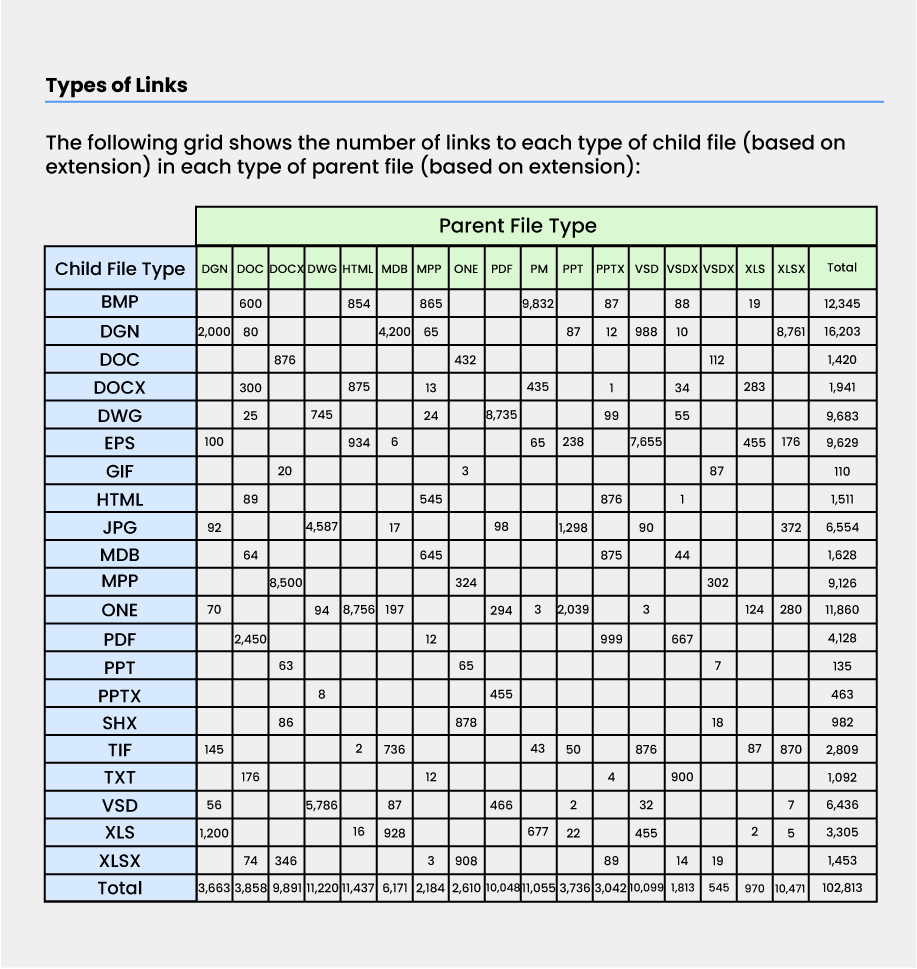
Screenshot of Regular Link Report, showing the summary table with each file type found, and the links associated with each.
Broken Link Report:
Highlights parent files (files containing links to other files) that contain broken links. This report provides a concise list of the affected files, accompanied by specific details about the broken links within each file.
Cross Reference Report:
Generates a comprehensive list of child files, along with an inventory of all parent files that reference them. This report shows where critical child files are used, which helps IT teams understand dependencies before migrations, reorganizations or cleanup work. It supports safer changes to shared content, because you can see which spreadsheets, documents or drawings will be affected by modifying, moving or archiving a given child file.
These reports turn an invisible risk into measurable data, which helps IT teams plan more accurately. If one department has thousands of linked spreadsheets, that department may need extra attention during migration.
They can also help stakeholders understand the risk. Broken links can sound like a small technical issue until a report shows how many files depend on them.
A pre-migration audit can also separate old problems from migration problems. If some links are already broken before the move, the team can document that early and decide whether to clean them up before migration begins.
This improves planning, communication and accountability.
These reports are all available with a free trial of LinkFixer Advanced.
The ROI of Automated Link Repair
The return on investment for automated link repair is usually found in avoided labor, business disruption, downtime and frustration. Avoiding potential revenue loss due to link-related data loss is another factor.
Manual repair introduces human error and is so slow that almost no one even tries it anymore. And, as outlined above, even search-and-replace scripts can’t do everything that needs to be done in the given timeframe and are fraught with problems.
Automation solves the problem.
With LinkFixer Advanced, IT teams can repair links at scale. They can process large volumes of files, reduce repetitive tasks and focus on planning, validation and user support. The value isn’t just technical. It’s also human.
A smoother migration means less stress for IT teams, fewer interruptions for users and more confidence from leadership.
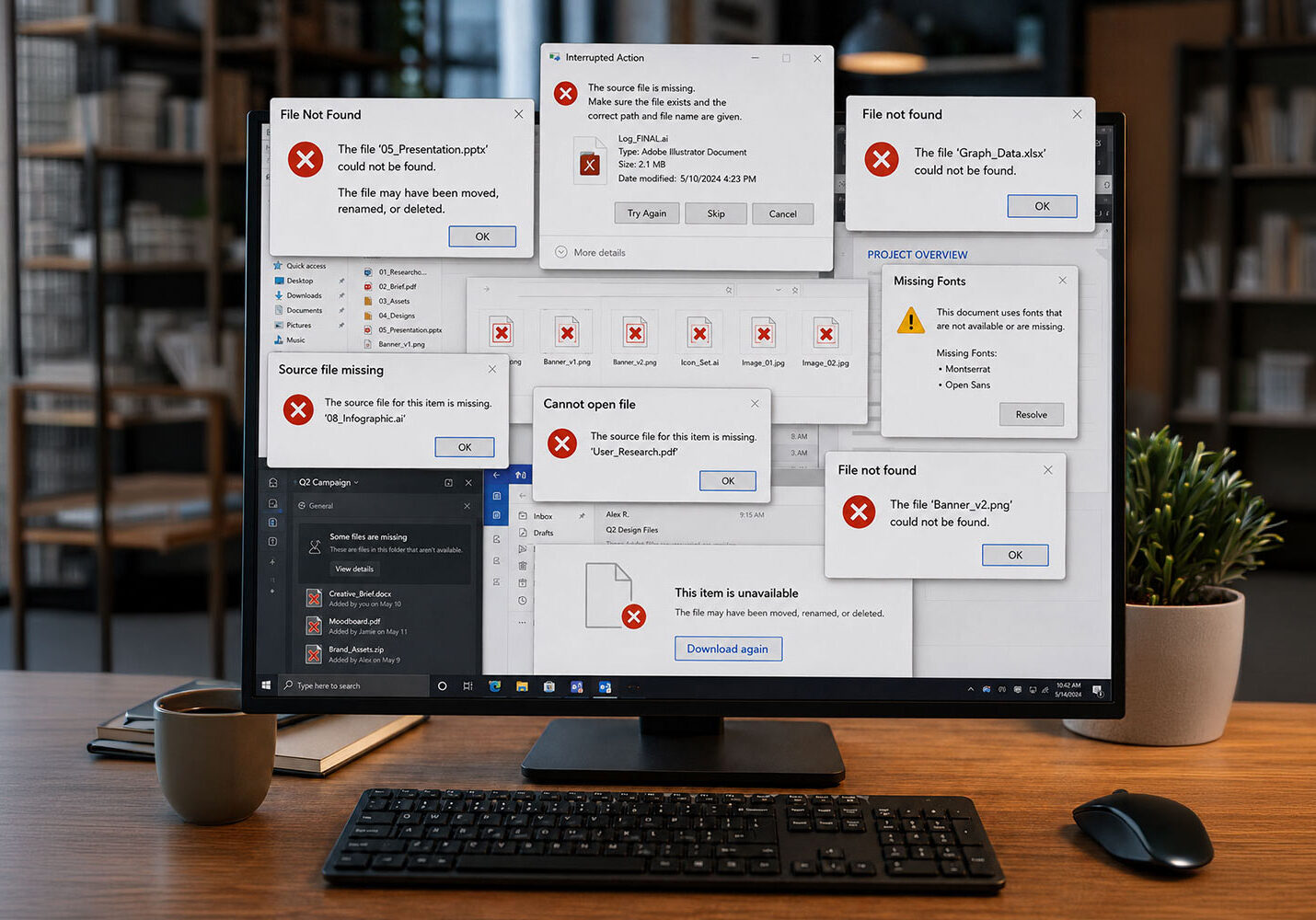
Nothing will halt productivity or blow up the helpdesk faster than the error messages users encounter after a migration.
Common File Types That Need Link Protection
Many business-critical file types contain links or external references that must be preserved, and they present themselves in a multitude of ways.
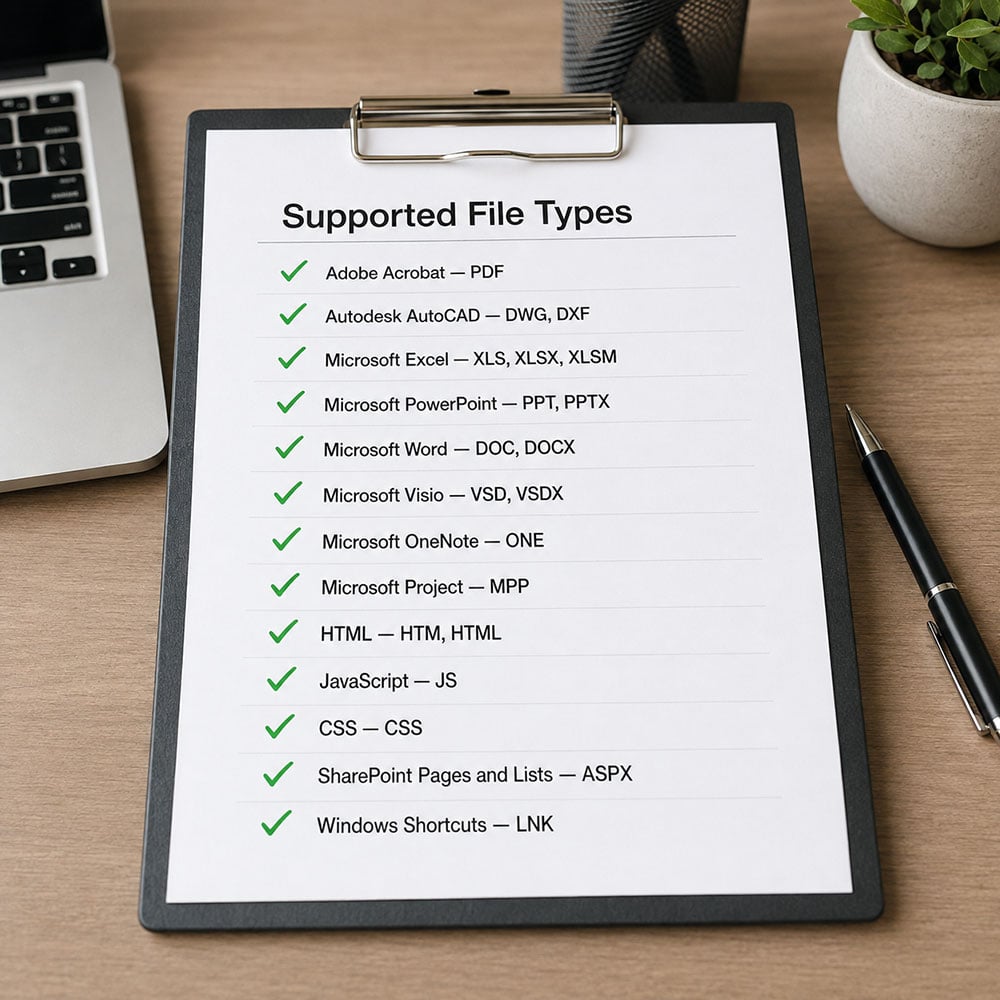
LinkFixer Advanced supports the world’s most popular file types.
- Microsoft Excel workbooks very commonly reference other spreadsheets or workbooks, shared folders or network locations using formulas and workbook links that also contain hyperlinks and embedded objects.
- Microsoft Word, PowerPoint and other Office documents may contain hyperlinks to other documents or locations and embedded or linked content such as images or objects stored in separate files.
- SharePoint pages and lists, for example, typically contain copious links to documents, libraries or other locations that must still be resolved correctly after content is moved or restructured.
- HTML and other web files may rely on URLs and image links pointing to other documents or resources.
- CAD files such as AutoCAD, Revit and MicroStation drawings often rely on external references (Xrefs) and related drawings stored in shared project folders.
- Graphics and publishing files such as Adobe InDesign, PageMaker and Acrobat/PDF frequently depend on linked images or placed documents stored outside the main file.
The more these link types are used across shared drives, SharePoint sites and other platforms, the greater the need for automated link protection and repair instead of manual editing or basic search-and-replace scripts.
This is important for engineering, construction and manufacturing, and particularly for finance, government, healthcare and legal organizations where files are not just documents, but operational assets.
SharePoint
Traditional file shares use drive letters and folder paths. SharePoint Online uses URLs, document libraries and cloud structures. That shift can easily break links built for an on-premises file server, leaving files unable to locate the resource they depend on.
A file that once linked to a shared drive may need to point to a SharePoint location after migration. If that update doesn’t happen correctly, users may find that their linked files no longer display the data they need.
Example:
A file that used to live at a UNC path such as
\\FileServer\Finance\Reports\Budget.xlsx
will, after migration, live at a SharePoint URL such as
https://tenant.sharepoint.com/sites/Finance/SharedDocuments/Reports/Budget.xlsx.
Links that still contain the old file‑server path will break, even though the file still exists, because the file is in a different location and has a different path (in this example, in SharePoint).
Solution: LinkFixer Advanced helps bridge that gap by scanning supported files in SharePoint document libraries, finding links that still point to old server locations and automatically updating those links, so they point to the correct SharePoint URLs. This lets IT teams move content from file servers into SharePoint while preserving the relationships between files that users rely on.
A strong link repair strategy should be built into the migration plan from the start.
Modern platforms such as OneDrive also have their own URL and site structures. When files are moved into these environments, LinkFixer Advanced can update links in supported file types so they point to the new locations instead of legacy server paths.
For complex SharePoint architectures, expert planning can also help. LinkTek’s SharePoint Migration Consultancy can assess the source environment, identify high-risk content and plan how LinkFixer Advanced should be used before and after the move.
Together, software and expert guidance reduce the risk of unexpected link failures.
Egnyte
Egnyte provides a cloud‑based file system with its own domain and folder structure, which differs from traditional UNC paths on file servers.
Example:
A file that used to live at
\\FileServer\Projects\ClientA\Specs.docx
will, after migration, live at an Egnyte URL such as
https://tenant.egnyte.com/Shared/Documents/Projects/ClientA/Specs.docx
Any links that still point to the old UNC path will fail because the file now exists in an Egnyte folder that is accessible only via an Egnyte URL.
Solution: LinkFixer Advanced for Egnyte is an enterprise solution that preserves and repairs file links during and after migration, so those links continue to work when content is moved into Egnyte.
In addition to all the features described above (Inoculate, Cure and Modify Links), LinkFixer Advanced for Egnyte includes an Egnyte-specific add-on that addresses Egnyte’s technical constraints:
- It connects directly to Egnyte via API, so that LinkFixer Advanced can process large volumes of data in the cloud rather than being limited by desktop sync clients.
With LinkFixer Advanced and the Egnyte add-on, IT teams can process large volumes of data through a direct API connection, preserve link relationships across the Egnyte environment and avoid the usual surge of post-migration incidents caused by broken links.
- It handles Egnyte’s API rate limits by using multiple authenticated accounts when needed and automatically retrying requests based on Egnyte’s suggested wait times, allowing link-fixing jobs to complete without manual intervention.
- It can fix links as HTTPS path-based URLs or Egnyte Document ID URLs for file types that support URLs, and as mapped-drive paths for file types that rely on the Egnyte Desktop App, so each link is repaired in the format that actually works for the users and applications involved.
If you’ve already moved files into Egnyte and links are broken, as mentioned above, LinkFixer Advanced’s Modify Links process can repair those links in batch, restoring missing data without manual scripts or one-off fixes.
With LinkFixer Advanced and the Egnyte add-on, IT teams can process large volumes of data through a direct API connection, preserve link relationships across the Egnyte environment and avoid the usual surge of post-migration incidents caused by broken links.
Box
Box provides a cloud-based file system with its own domain and folder structure, which differs from UNC paths on traditional file servers.
Example:
A document that originally lived at
\\FileServer\Departments\Legal\Contracts.docx
may, after migration, live in a Box location accessed via the Box Desktop client and a Box URL such as
https://subdomain.app.box.com/file/Departments/Legal/Contracts.docx.
If links inside spreadsheets, documents or drawings are left pointing at the old server path, users will see missing data or “file not found” errors even though the content has been successfully migrated to Box.
Solution: LinkFixer Advanced is designed to prevent and repair this type of link-related data loss when migrating to or from Box, using either the Inoculate & Cure feature pre-migration or the Modify Links feature if the migration is already complete.
LinkFixer Advanced processes high-volume Box data at scale through the API, automatically navigating rate limits and intelligently repairing links as either Box URLs or mapped-drive paths — so large remediation jobs run reliably without manual intervention.
LinkFixer Advanced’s Box add-on helps you address Box-specific technical constraints and lets you:
- Process large volumes of data directly in Box via the Box API, rather than being limited by desktop sync clients or manual export‑import workflows.
- Handle Box’s API rate limits automatically by managing authenticated requests and retrying them based on Box’s rate-limit responses, allowing large link-fixing jobs to complete without manual restarts or operator intervention.
- Repair links either as Box URLs or as mapped-drive paths for file types that depend on desktop integrations, so each link is updated to a format that actually works with the Box Desktop client and with the applications that open those files.
These Box-specific capabilities give IT teams a way to move content into Box while keeping linked spreadsheets, documents and other files usable, instead of trading working links for cloud storage.
If you’re migrating to another cloud storage environment, for example OneDrive, OpenText, AWS or Azure, LinkFixer Advanced offers full support and can protect links pre-migration or repair them post-migration.
A Practical Deployment Framework for IT Teams
A strong link repair strategy should be built into the migration plan from the start.
- First, audit the current environment. Use the free trial of LinkFixer Advanced to identify linked files, existing broken links and files that belong to link-dense departments such as finance, engineering and project controls. Treat these as high-risk allies in your migration plan.
- Next, prioritize critical data. Focus on active reports, operational files, engineering drawings, and the content users depend on every day.
- Then, inoculate before moving files. This protects file relationships while the source environment is still intact, which is especially important if files will be renamed, reorganized or moved to a platform with a different path structure.
- After that, migrate the data using your chosen platform or process. Align planned Cure processes with cutover windows and validation cycles so that link repair is a deliberate stage in the project, not an improvised reaction to post‑cutover incidents. Keep clear records of source locations, destination locations and structural changes.
- Once the move is complete, run Cure on the links in the destination. LinkFixer Advanced updates file links so they point to the correct destination paths or URLs.
- Finally, review reports and validate results. Confirm what was fixed, review exceptions, test priority files and share results with stakeholders.
- This process helps prove that the migration preserved usability, not just file location.
Beyond Migration: Cleaning Up Existing Link Rot
LinkFixer Advanced isn’t only useful during migrations.
Many organizations already have broken links across their file systems. These may come from past server changes, renamed folders, employee turnover, department restructuring or years of unmanaged file growth.
Over time, broken links become part of the background noise of the business. Users work around them. Teams create duplicate files. People stop trusting old reports. Valuable information becomes harder to find and harder to use.
Automated link repair can help clean up that legacy problem.
By scanning existing environments and repairing broken links where possible, IT teams can improve data quality before a major migration or as part of a wider information governance initiative.
By scanning existing environments and repairing broken links where possible, IT teams can improve data quality before a major migration or as part of a wider information governance initiative.
That means LinkFixer Advanced can support immediate project success and long-term digital health.
When Consulting Support Makes Sense
Some migrations are straightforward. Others aren’t.
LinkFixer Advanced is very intuitive and doesn’t require an expert to run it. But if you’re under a tight deadline and/or are already short on staff — or if you have a highly esoteric, complicated situation — consider having a LinkTek consultant handle all your links for you.
LinkFixer Advanced Consulting can help teams design the right approach, configure the software and avoid common migration pitfalls.
Support may include pre-migration assessment, link repair planning, technical validation, custom workflows and post-migration review.
Consulting support gives the team access to people who understand how to protect link integrity at scale.
For IT leaders managing high-stakes projects, uncertainty can make the difference between a smooth transition and a costly recovery effort. The consulting option gives the team access to experts who understand how to protect link integrity at scale, anticipate potential challenges and prevent broken links before they impact users after cutover.
Why Link Integrity Builds Trust
Migrations can be stressful for users. Even when a move is necessary, people worry about losing access to the files they depend on. They worry that things will break, daily workflows will become harder or data will be incomplete.
When everything works after the move, stress subsides and trust grows. Users feel that IT protected their work. Leadership sees that the project was handled with appropriate attention to detail. The migration team can focus on adoption instead of emergency repair.
That’s the human side of link integrity. It’s not just about paths, URLs or file references. It’s about helping people keep working with confidence.
Conclusion: Protect the Connections That Make Data Useful
A successful migration isn’t measured only by whether files arrive in a new location. It’s measured by whether people can keep using those files without disruption.
Broken links put that scenario at risk.
LinkFixer Advanced gives IT teams a structured way to prevent link decay, automate repair and preserve the relationships that make enterprise data useful. With the “Inoculate and Cure” process, teams can identify working links before migration, automatically repair them after the move and document the results for stakeholders.
For organizations moving to SharePoint, OneDrive, Box, Egnyte, OpenText, AWS, Azure or another cloud platform, link integrity should be part of the migration plan from day one.

When the links are working, so are the users.
Safeguard your migration. Protect your links. Give yourself and your users a smoother first day in the new environment.
By Ed Clark
Frequently Asked Questions
LinkFixer Advanced:
- Finds, protects and repairs links across supported file types and platforms.
- Is the world’s only application that can prepare links pre-migration, so they can be automatically fixed afterwards.
- Uses Inoculate and Cure for links pre- and post-migrations and Modify Links for already-broken links if the migration is already complete.
- Is typically run centrally by IT, without requiring installation on every user’s workstation.

LinkTek COO
Ed Clark

Feel free to share this article on your social media:
Recent Comments
- No recent comments available.


 ChatGPT,
 Gemini,
 Claude and
 Copilot
Leave a Comment