
IT Tips & Tricks
Published 12 November 2026
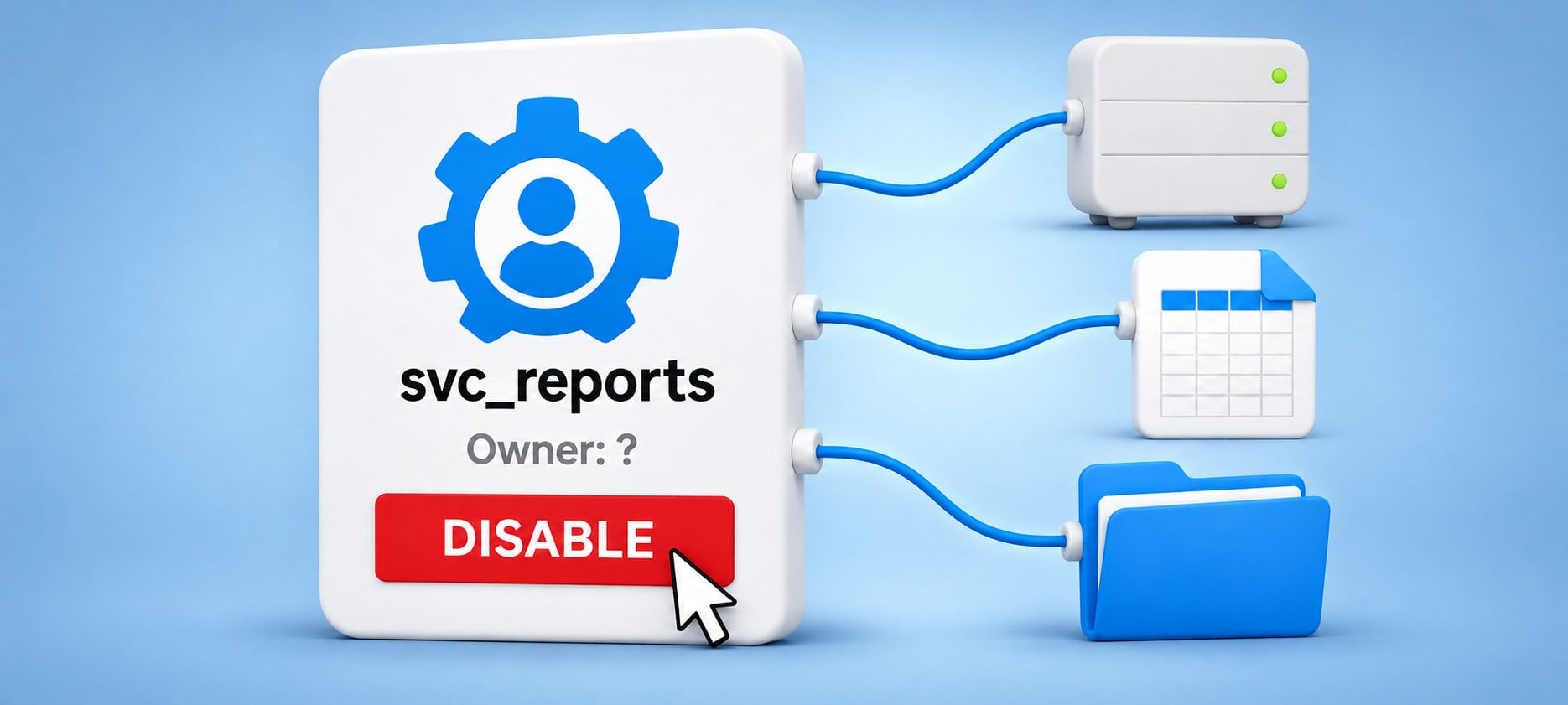
You’re ready to retire an old file server when someone spots svc_reports in a scheduled task. Nobody recognizes the account and disabling it could turn your tidy migration into Monday’s nightmare. Before you touch it, you need to know what it runs, who depends on the results and how you’ll reverse a change that fails.
Never assume that an empty owner field means the account is expendable.
The person who created it has left. Its description says “temporary.” Apparently, “temporary” got promoted to permanent without anyone realizing it.
Someone has to take responsibility for investigating the account before you change it. That’s where service account management begins: Find out what depends on it, whether the work is still needed and what you’ll do with the account. Never assume that an empty owner field means the account is expendable.
An Account Can Outlive the Project That Created It
Picture a nightly task that copies sales reports from \\FS01\Exports into a reporting folder. A consultant created the account during an earlier migration. The project ended, the consultant moved on and the task kept running.
“Nothing’s happening this week” offers very little reassurance when the next scheduled run is the annual billing export.
Later, someone reused the same account for another script.
Now you’ve inherited an identity whose name describes only part of its job. Removing its access to the exports folder might interrupt one process. Changing its password could affect both.
Service accounts belong to the broader category of non-human identities used by applications, automated workloads and devices. Depending on the platform, your workload might use a traditional domain account, an application identity or a managed identity.
Microsoft’s guidance for on-premises service accounts calls for an accountable owner, a defined purpose and records connecting the account to its applications and scripts. Those records give you somewhere to start when the original administrator is unavailable.
A Quiet Account May Still Have a Deadline
An account with no recent activity can look like an obvious cleanup candidate. But before you disable it, check what “recent” actually covers. A task that runs only at quarter-end could be quiet throughout your observation period. A recovery script might run only during an incident or exercise. Missing activity could also reflect gaps in the logs you’re reviewing.
Microsoft Entra distinguishes between interactive user sign-ins, non-interactive user sign-ins, service principal sign-ins and managed identity sign-ins. Your investigation needs the records appropriate to the identity. Reviewing only interactive user sign-ins won’t establish whether an automated workload is active.
For an on-premises account, inspect the relevant servers and task configurations as well as authentication records.

A quiet account may still have an important job waiting down the line.
Ask the person responsible for the business output when it’s expected. “Nothing’s happening this week” offers very little reassurance when the next scheduled run is the annual billing export. I’d want to see evidence covering the account’s expected operating cycle before calling it unused.
Follow the Account to the Work It Performs
Start with a manageable scope, such as the accounts used by a server you’re retiring. Search the service and task configurations on that server, then follow the resources each workload accesses.
If you’re reviewing service account best practices, ask whether another administrator could take over using the records you’ve left. They’ll need:
The copy operation can succeed even though those links no longer work.
- Purpose: Name the task and its intended business result, such as producing the weekly inventory report.
- Dependencies: Record the host, application or script, its schedule and the resources it accesses.
- Permissions: Identify the access it needs and flag privileges whose purpose you can’t explain.
- Responsibility: Assign an accountable owner and a backup contact who can approve changes.
- Credential handling: Document how credentials are maintained and where authorized administrators can manage them. Keep secret values out of the inventory.
- Validation: Specify how you’ll confirm a successful run and who can verify the output.
If the account has administrative privileges, include it in your privileged access management reviews. Establish why it needs that access, who can use its credentials and how its activity is monitored.
Microsoft recommends keeping service account information in a configuration management database. If you already use one, link the account to the applications and infrastructure it supports.
For an MSP, establish the division of responsibility with the client. You may maintain the account while the client’s application owner decides whether the underlying process is still required.
A Migration Can Expose Two Different Failures
Suppose your investigation also finds that svc_reports runs a second script that copies reporting workbooks to the old file server. During migration, you update that script to copy them to the new share and grant the account the required access.
The task completes. That’s encouraging, but you still need to inspect what it produced. One of those workbooks could still contain links pointing back to source files on the retired server. The copy operation can succeed even though those links no longer work.
Your migration checks therefore need to cover both execution and output. Run the workload under its intended identity, confirm that it reaches the required resources and verify the resulting files.
Otherwise, you could trade a working setup for an outage and a better-looking account inventory.
For supported file types, LinkTek’s LinkFixer Advanced™ protects and repairs file links affected by moves and renaming. You’ll still need to investigate the account’s ownership, permissions and configuration separately.
Make the Change Reversible Before You Make It
Once you understand the workload, decide whether to retain the account, replace it or retire the process.
If the account is no longer needed, agree on a change window, notify the affected owners and define the conditions that would trigger a rollback. Preserve the configuration information you’ll need to recover, using your approved access controls.

Before disabling an account, establish how you’ll re-enable it if something stops working.
Where the platform supports it, disabling an account before deleting it can preserve a recovery option. Google Cloud’s service account guidance explains why this distinction matters: Creating another account with the same name produces a different identity, so the original access bindings don’t automatically transfer.
Before disabling the account, check exactly how you’d restore it on that platform.
Choose an observation period that covers the workload’s schedule. For an infrequent process, arrange a controlled test with its owner rather than assuming a quiet afternoon proves success.
Re-enabling an account also won’t necessarily recover a missed export. Your rollback plan should explain how you’ll identify and rerun failed work.
Automatic Passwords Still Need a Human Owner
When a workload remains necessary, review whether its existing identity is appropriate.
Microsoft’s group Managed Service Accounts can provide automatic password management for compatible Windows workloads across multiple servers. For supported Azure workloads and target resources, managed identities allow authentication without developers maintaining credentials.
Those capabilities reduce credential handling. You still need someone to approve permissions, investigate unusual activity and decide when the workload should end.
Avoid carrying a shared account into the new environment simply because everything currently works. Separate identities for distinct workloads can make future changes easier to assess. Google Cloud’s guidance states that sharing one account across applications complicates retirement and makes activity harder to attribute.
Before replacing an identity, check that the application supports the replacement and test the jobs that use it. Otherwise, you could trade a working setup for an outage and a better-looking account inventory.
Give the Next Administrator an Answer
Before closing the migration or cleanup ticket, assign the next review date and update the account’s documentation. Include ownership transfer in application handovers and staff departures.
The next administrator who finds svc_reports should be able to identify its owner, understand its purpose and find a tested retirement procedure.
Then, when it’s time to turn the account off, you’ll know what to expect and what to check afterward.
If retiring the old server means moving files, explore LinkFixer Advanced to protect and repair their file links during migration.
By Ed Clark
References:
- Microsoft: Govern on-premises service accounts(opens in new tab), covering ownership, dependency records and lifecycle management.
- Microsoft: Sign-in logs(opens in new tab), explaining identity activity and access records.
- Google Cloud: Service account practices(opens in new tab), covering shared accounts and disabling before deletion.
- Microsoft: Group Managed Service Accounts(opens in new tab), explaining automatic password management.
- Microsoft: Managed identities(opens in new tab), explaining authentication without application-managed credentials.

LinkTek COO
Ed Clark

Feel free to share this article on your social media:
Recent Comments
- No recent comments available.


 ChatGPT,
 Gemini,
 Claude and
 Copilot

Leave a Comment