

Pre-Migration Link Hygiene: 6 Red Flags IT Teams Should Know Before an Enterprise Move
Published 21 July 2026
Every enterprise migration starts with a plan. Someone draws up a timeline, assigns a project manager, schedules the cutover window, and at some point in a meeting, someone says, “It’ll be fine. It’ll be great. It’ll be seamless.”
While we can appreciate the enthusiasm, the truth is that it often isn’t fine, great or seamless, and file links are often the reason why.
Broken links don’t announce themselves during planning. They show up afterward, when users can’t open spreadsheets, when Excel workbooks return empty values from what used to be connected data or when a Word document can’t find its embedded PDF. That’s when the support tickets start stacking up. The good news is that most link damage is preventable if you know what to look for before the move.
Most link damage is preventable if you know what to look for before the move.
The Snowball Effect
A quick reminder of something you already know: A file link is a reference: a path, an ID or a URL that tells one file where to find another. When that path changes, the link breaks, regardless of whether the underlying file still exists. Multiply that across thousands of documents on a shared drive and the scale of the problem quickly becomes uncomfortable.
Common culprits include:
- Server refreshes and renames: Every UNC or path referencing the old server name instantly becomes invalid.
- Migrations to SharePoint, OneDrive or cloud platforms: Beyond the path structure change, there’s a more fundamental shift from file-system paths to path-based or ID-based URLs. Local and UNC paths don’t translate without deliberate remediation.
- File system restructures: Renaming or reorganizing folders breaks links even when no files are deleted.
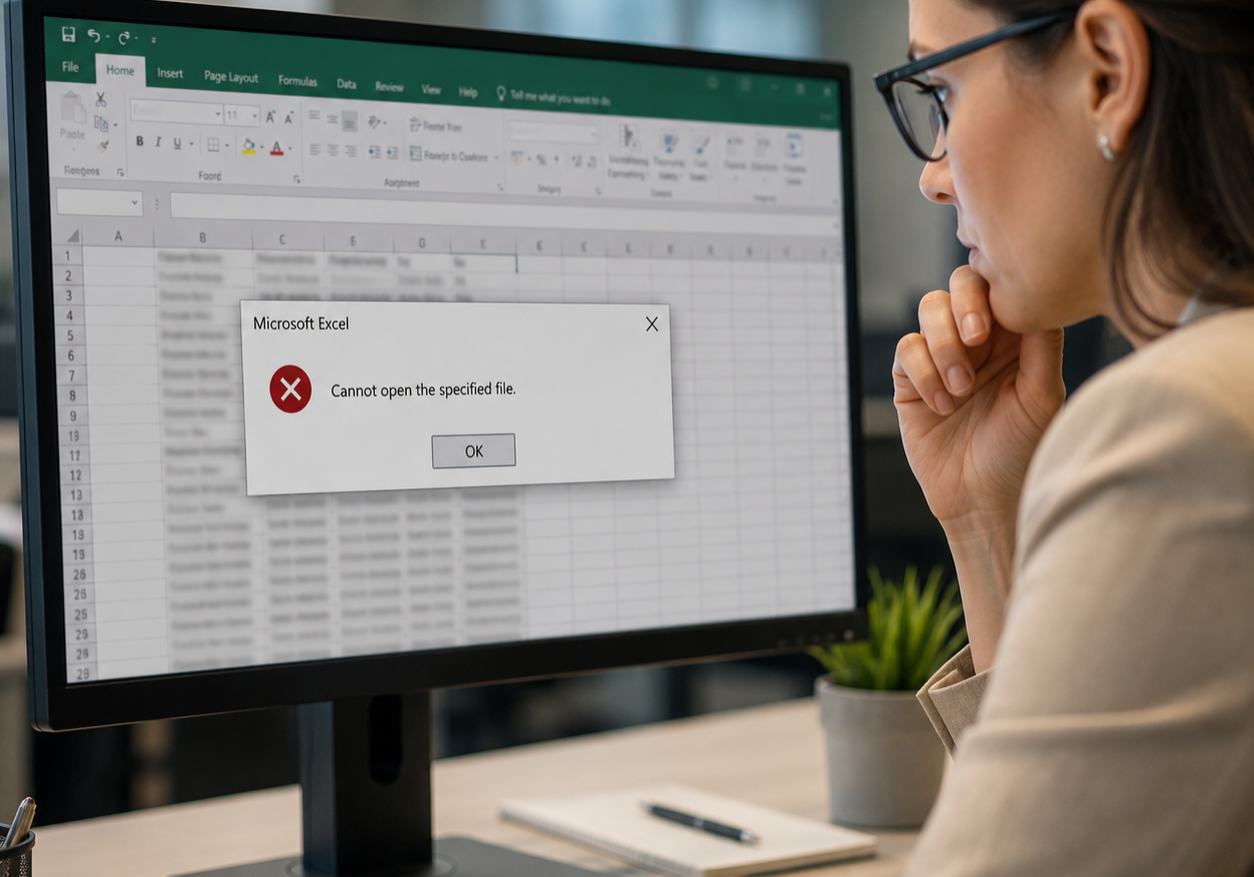
There’s a direct correlation between the number of broken links in your data and the number of service tickets that’ll swamp the helpdesk.
- Server upgrades and disaster recovery: Hardware swaps can trigger broken references if server identities change.
One more thing worth noting: Permissions changes can make files appear broken to users even when the links themselves are intact. A link that resolves correctly but hits a permissions wall looks like a broken link from the user’s side, so permissions audits belong on the pre-migration checklist too.
Red Flag 1: Absolute Paths Everywhere
Absolute paths contain a full address from the root to the file. In a static environment, that’s fine. During a migration, it means every path referencing the old location breaks the moment files move.
Audit for absolute paths and assess how many reference locations will change. While some can be converted to relative paths, this is often not an available or workable solution. And in any case, relative paths help mainly in stable file-system structures and often don’t carry over cleanly to cloud storage, where path conventions differ. Other absolute paths will need to be updated to match the destination environment directly. LinkFixer Advanced™ handles this conversion across thousands of files simultaneously, which is considerably less painful than a file-by-file search-and-replace.
Red Flag 2: Mapped Drive References
A link saved as G:\Shared\Projects\2023 looks perfectly reasonable to the user who created it. In a migration, it’s a liability. Mapped drives are session-specific and machine-specific, and they may not exist at all in the destination environment.
The real problem is that these references often live invisibly inside Excel workbooks, Word documents, PowerPoint files, CAD drawings and PDFs, surfacing only when someone tries to open something. Pre-migration remediation should replace them with UNC paths or platform-appropriate equivalents, keeping in mind that UNC conversion is a file-share normalization step and not a final solution for cloud destinations.
Red Flag 3: Already-Broken Links in the Source Environment
Before any migration begins, a significant portion of links in a typical enterprise environment are already broken. Files were moved informally. Folders were renamed without communication. The links that pointed to those locations have been broken ever since, sitting quietly inside files nobody has recently opened.
Migrating a broken environment doesn’t fix it. It migrates the damage and adds the chaos of the migration on top.
Migrating a broken environment doesn’t fix it. It migrates the damage and adds the chaos of the migration on top. LinkFixer Advanced’s Broken Link Report scans the source and lists every parent file with broken links, giving teams a clear remediation target before the cutover window opens. Every link fixed before the move is one fewer problem to untangle afterward.
Red Flag 4: No Inventory of Cross-File Dependencies
Enterprise files reference other files constantly. A financial model pulls data from multiple workbooks. A report embeds a PDF that links to source data. When a frequently referenced file is migrated, every file in that dependency chain breaks at once.
LinkFixer Advanced’s Cross Reference Report lists each linked file alongside all parent files that point to it, identifying which files are load-bearing before the move.
Red Flag 5: File Types With Hidden Link Structures
Not all links are visible hyperlinks. Data connections, external queries, referenced images and template references are just as vulnerable to migration damage and much easier to miss in a manual audit. The same is true for OLE objects and their most common replacements: file paths, URLs and web APIs.
Excel workbooks are especially complex, potentially carrying data connections, cross-file named range references, embedded objects and hyperlinks all at once.
Other high-risk formats include CAD drawings with external references, InDesign files with linked assets, Access databases with linked tables and PDFs with embedded links. LinkFixer Advanced supports all of these, along with Word, PowerPoint, OneNote, Revit, MicroStation and more, so the audit covers the full file estate rather than just the obvious formats.
Red Flag 6: No Plan for Post-Move Link Protection
Even a clean migration doesn’t freeze the environment in place. Users move files. Folders get reorganized. Someone renames a directory. Each of these everyday actions is an opportunity for links to break all over again, and in a shared environment, they happen constantly.
The inoculate-and-cure methodology that LinkFixer Advanced pioneered addresses this by pre-identifying links before the migration and reconnecting them afterward. Teams without a link protection strategy tend to discover the damage gradually, as users open files they haven’t touched since cutover. That’s rarely a good week for the helpdesk.

Victory or chaos? The outcome is your call.
The Checklist
A solid pre-migration link hygiene process should cover these bases:
- Audit the source environment for broken links before scoping the migration. Know what you’re starting with.
- Generate a cross-reference report to map file dependencies.
- Convert absolute paths and mapped drive references to relative or UNC paths, with appropriate handling for cloud destinations. Note that relative paths are best for cloud or web migrations, while UNC is best for on-prem server migrations.
- Check all file types that carry embedded links, not just Office documents.
- Pre-protect links using LinkFixer Advanced so they can be reconnected when the Cure function runs.
- Run a permissions audit alongside the link audit.
- Plan for ongoing link integrity after migration, because users will keep moving and renaming files.
The cost of doing this work before the move is measured in planned hours. The cost of skipping it is measured in a very different kind of hours. LinkFixer Advanced handles the audit and remediation at scale, across millions of links and dozens of file types, so IT teams can go into a migration knowing their linked data is in good shape rather than hoping it is.
That’s the difference between a migration that merely moves and one that truly works.
To learn more about how LinkFixer Advanced protects and repairs file links during enterprise migrations, chat with us online or contact a Service Consultant at 727-442-1822.
By Ed Clark

LinkTek COO
Ed Clark

Feel free to share this article on your social media:
Recent Comments
- No recent comments available.


 ChatGPT,
 Gemini,
 Claude and
 Copilot
Leave a Comment