
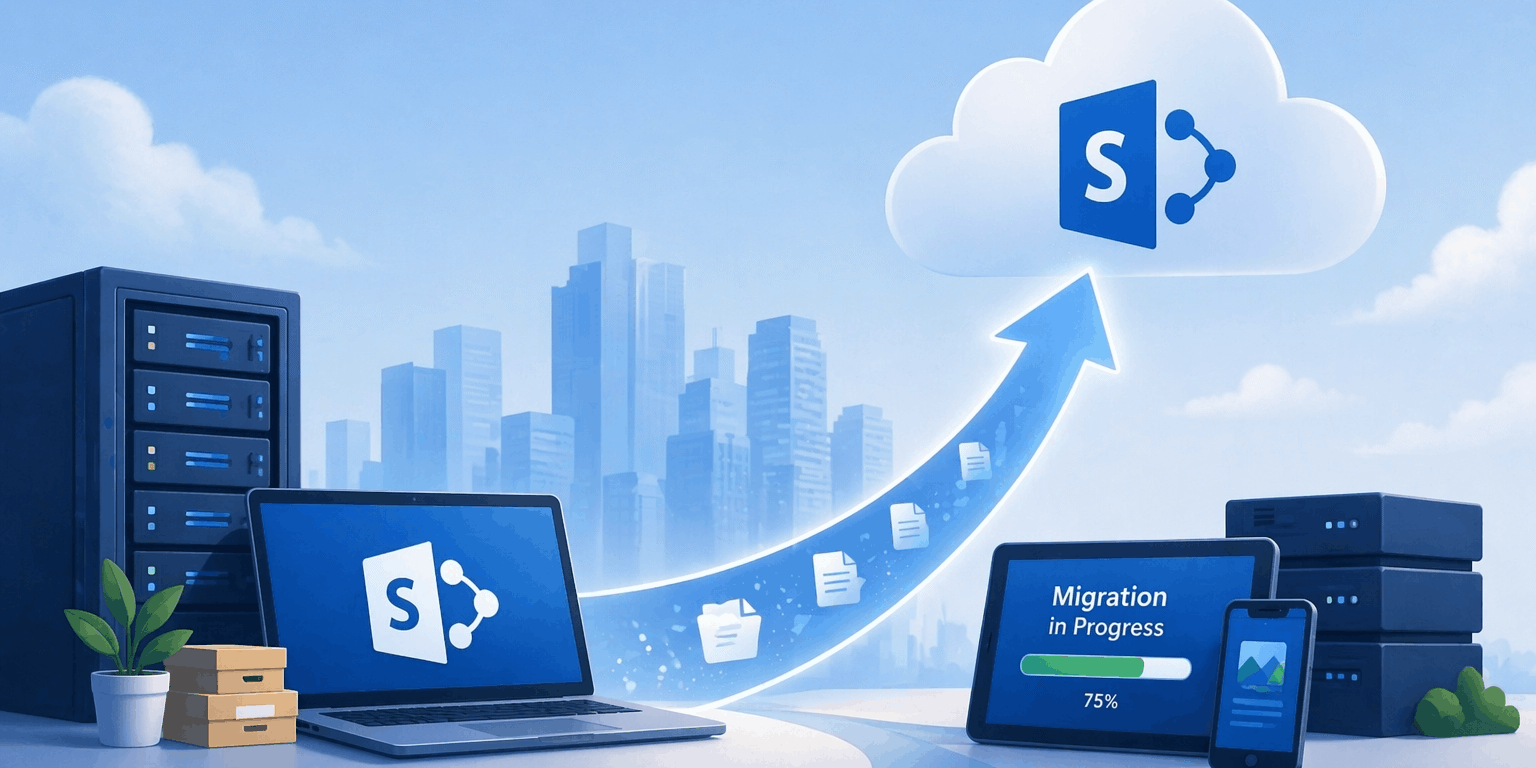
5 Tips for a Successful SharePoint Migration
Because Data Migration Shouldn’t Be Code for “Data Loss”
Published 7 December 2021
Updated 11 May 2026
Sometimes, life can be a little frightening. Your first kiss, an important job interview for which you felt inadequately prepared, that root canal from the new dentist who has hands like a lumberjack, or that time you went off a 32-foot diving board — in your defense, it was a dare back in college and you’d maybe had one brew too many — all of them can be pretty scary.
Data migrations may belong on the list of scary life events, too, particularly since they potentially impact a lot of people.
Perhaps hundreds or thousands of employees count on you getting it right, with minimal disruption to their productivity. Management counts on you getting it right so that there’s no downtime or loss of revenue. Your boss counts on you getting it right so that he doesn’t look bad. And maybe the cute gal in Accounting won’t go out with you again if you really screw up what she views as “just putting stuff in SharePoint.”
Migrating to SharePoint can be downright daunting.
Simply “getting it right” can start feeling like a lot of pressure.
While most data migrations present their own unique challenges, migrating to SharePoint can be downright daunting, particularly since there are massive differences between the original system and the target system.
You don’t want to migrate junk or end up with a new system as messy as the old one.
With the increasing frequency of remote employment comes an increased need for collaboration. As a web-based collaborative platform that integrates with Microsoft® 365, SharePoint is highly configurable, and its usage varies enormously from organization to organization.
If you’re facing a SharePoint migration, here are five confidence-boosting tips to help make your migration faster, smoother and more secure.
Tip 1: Never Underestimate the Value of Analysis
Our first tip is very simple: Always analyze the content on the source system first.
A migration is a lot like moving to a new house. It’s a great time to sift through your possessions and jettison the trash (those things you don’t really need to keep anymore).
Take this opportunity to sort through your docs and data. You don’t want to migrate junk or end up with a new system as messy as the old one, so go ahead and clean house.
Now is also a good time to identify your redundant, obsolete and trivial (ROT) data. Planning for Migration: Eliminate the ROT contains info on how to eliminate it and how to perform a ROT analysis.
Aside from the ROT, you should also establish the following:

Know the capacity of your content? How much space do you really need?
- The capacity of your content. In other words, find out how much space your files (a) currently occupy and will (b) require on the new system.
Amongst our clients, for example, that volume can vary greatly, but the average is probably around ten terabytes. Knowing how much space is going to be required is key to your success.
- What content types (such as Excel spreadsheets, PDFs, documents, schedules, CAD drawings, DWG files and so forth) do you have? Do all of them need to be migrated? Is one type of file being archived because there’s newer software?
Again, you’re data-gathering so that you have a big-picture vision of your requirements, resulting in a detailed and accurate migration plan.
- When migrating to SharePoint, it’s wise to run automated content scans using tools that detect illegal file names or long paths.

With the right tools, you can approach your migration with the confidence of a fearless pro.
- When moving to SharePoint Online, identify workflows and automation logic that may need redesign.
- Folder and file activity. Have you got a handle on things like workflows, for example, that may move a file through the SharePoint hierarchy or system in a particular way?
Do you know how users work with folders and files? How much disruption can they tolerate during a migration? Obviously, gathering this kind of information is merely part of forming that overall, big-picture vision that will be the result of your analysis.
- Metadata keywords and usage. SharePoint metadata is the information about your files, not the content in the files. So, the file name, title, author, creation date, last modified date, last modifier, file size and so on are all metadata.
This data may be helpful in any number of ways, such as, for example, determining ROT content by looking at outdated or obsolete files. The chances are good that you don’t need to migrate the “Bathroom Supplies” file that was created in 2001 and hasn’t been used since.
- Duplicate files and folder structures. This one is pretty self-explanatory. If there happens to be a second copy of the “Bathroom Supplies” file from 2001, that one doesn’t need to be migrated either.
If there are two identical sets of customer lists (2000 to 2010), and if that data is still valid and being used, then sure, go ahead and include one of them in your migration. But plan on excluding the other.
Once you’ve completed the analysis, you can start defining your migration rules. You’ll have a much better idea of where to trim the fat. This means you’ll only move the content you actually want in your new system, with everything in good shape.
Tip 2: Everything Collapses Without Structure
After completing the analysis in Tip One, you can determine your data structure in SharePoint. SharePoint structures data from general to specific in web applications, site collections, sites and subsites, lists and/or libraries, and, of course, folders.
The most common way to structure SharePoint data is through the use of several hierarchical trees of sites.
Each site in a hierarchy has its own configuration of content types, users, permissions, metadata fields and various other site settings. At lower levels, sites in the hierarchy can inherit and specialize the settings from sites positioned at higher levels. Of course, you can always change the permission by breaking the inheritance.
Consider prioritizing metadata models and search optimization up front.
Tip 3: In SharePoint, Define a Global Model
Now is the time to define a new metadata model based on the decisions you made in tip number one. At this point, you can compare the data models of the source system with the target system and merge the data models to one global data model, which safely includes all your data. Also include mapping permissions, governance policies and lifecycle rules in your model, not just the metadata.
Having one global metadata model will improve the quality of your SharePoint content and the “findability” (if that isn’t an actual word, it should be) of your data.
Tip 4: Get “Classy”
If you want to increase the aforementioned “findability” of your content, now is a good time to add metadata tags to classify your data. SharePoint has options such as “Content types,” “Managed Metadata” and “Lookup fields” to manage your classification. You could also consider automated tagging with AI to improve consistency and reduce manual work.
If you have a ton of data, using a tool to automatically classify the content from your source system might make your life a whole lot easier.
You could also consider automated tagging with AI to improve consistency and reduce manual work.
Now that you’ve gathered all the relevant data, it’s time to assemble it into that awesome migration plan that should assure your success. For more information on migration planning, see our free eBook, Planning Data Migration the Right Way.
Tip 5: Transfer Time
It’s finally moving day. For a small-scale migration, you could transfer the data manually, but if you want to ensure that no data or metadata is lost during your migration, you should probably choose an automated tool (based on content complexity and customizations) that will deposit your data exactly where it should be.
Pilot and phased migrations are growing in popularity and are often considered a migration best-practice, so you may want to go that route. The article Data Migration Strategies looks at the pros and cons of various approaches, which you may find helpful.

Don't allow your migration project to be derailed. Without a sound structure, failure is almost guaranteed.
Need more info on the what, how and why of a SharePoint migration? This informative article answers those questions: SharePoint Online Migration Checklist: Read This Before You Attempt.
Wondering whether to bring in outside help or do it yourself? It’s a valid question. 7 Benefits of Having a SharePoint Migration Consultant on Your Side offers insight that may be helpful in arriving at a workable answer for your organization.
The Things Nobody Tells You
Did you know that the majority of data migrations fail? According to an Experian white paper, “Data migrations can be tricky. These projects hold many challenges, and according to Gartner, 83 percent of data migrations fail or exceed their budgets and schedules.”
This issue is, no doubt, compounded by the fact that data migration issues often arise because a company inadvertently chooses to conduct their migration with software that offers little to no protection against broken file links, one of the most common causes of missing data.
Don’t be discouraged, though. The smartest, most proactive course of action one could choose would be to preserve those file links prior to the migration, protecting against lost data, reduced productivity and unhappy execs. But how can you achieve this?
Start by choosing a company that is the international leader in data migration software that automates the management and repair of file links.
LinkFixer Advanced™ safeguards your linked data during a migration by automatically finding and fixing broken links. More importantly, it is the only application that can protect links before a migration. There’s confidence and peace of mind to be gained from that.
Preserve your file links prior to a data migration.
Additionally, LinkFixer Advanced supports today’s most common file types and automatically fixes broken links in batch — in any number of files at a time — while also offering the tools to virtually eliminate this type of risk in the future.
All said and done, LinkFixer Advanced offers a refreshingly intelligent solution to a common problem that plagues IT departments around the world.
For a smoother SharePoint migration, chat with us online at LinkTek.com or speak to a friendly Service Consultant at 727-442-1822 for more information.
If you’re understaffed and want help protecting your links, a consultant can run LinkFixer Advanced for you or help guide you through the process.
Migrating to SharePoint Online? Need a guide? Want someone to completely take the reins on this one? Book a free strategy session with a SharePoint migration consultant.
And if you’re serious about the gal in Accounting, please, by all that is sacred, stay away from the 32-foot diving board.

LinkTek COO
Ed Clark

Feel free to share this article on your social media:
Recent Comments
- No recent comments available.


 ChatGPT,
 Gemini,
 Claude and
 Copilot
Leave a Comment